
Edits is Instagram's free video editor, and it's a great home for DiveHUD overlays if you're posting straight to Reels. The workflow is the same idea as CapCut: drop your black-background overlay on top and let a blend mode key out the black. The menus just sit in slightly different places. Here's the whole thing.
What you'll need
- Your dive clip (any camera: GoPro, phone or action cam)
- A DiveHUD overlay exported as a black-background clip
- The free Edits app (by Instagram)
Step 1: Export your overlay from DiveHUD
In DiveHUD, generate a depth or time overlay for the dive you want and export it. You'll get a clip with your metrics on a solid black background. That black is what the Screen blend mode drops out, leaving only your metrics over the footage.
Step 2: Open a new Edits project
Start a new project and add your dive clip to the timeline.
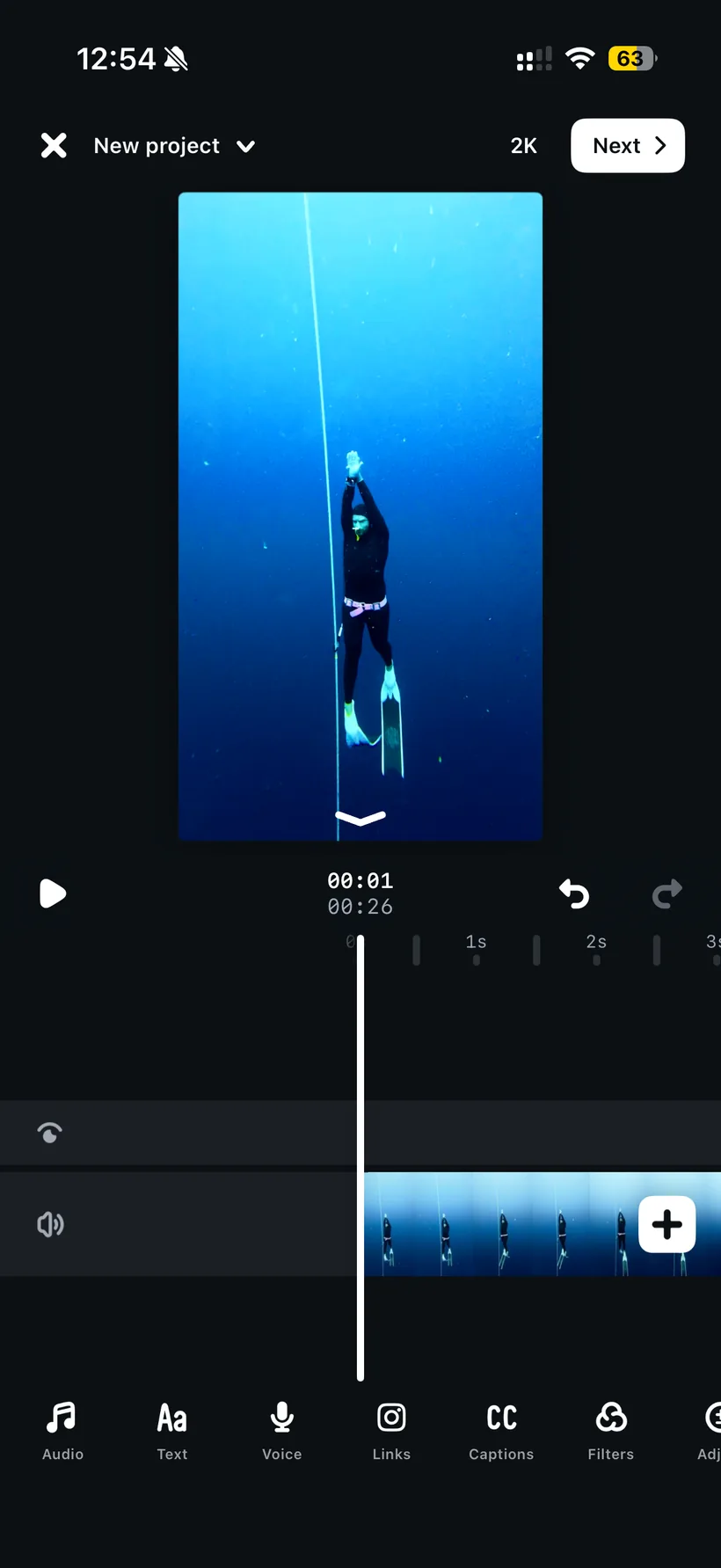
Step 3: Import your overlay
Add your exported DiveHUD file as an overlay so it sits on its own layer above the footage.
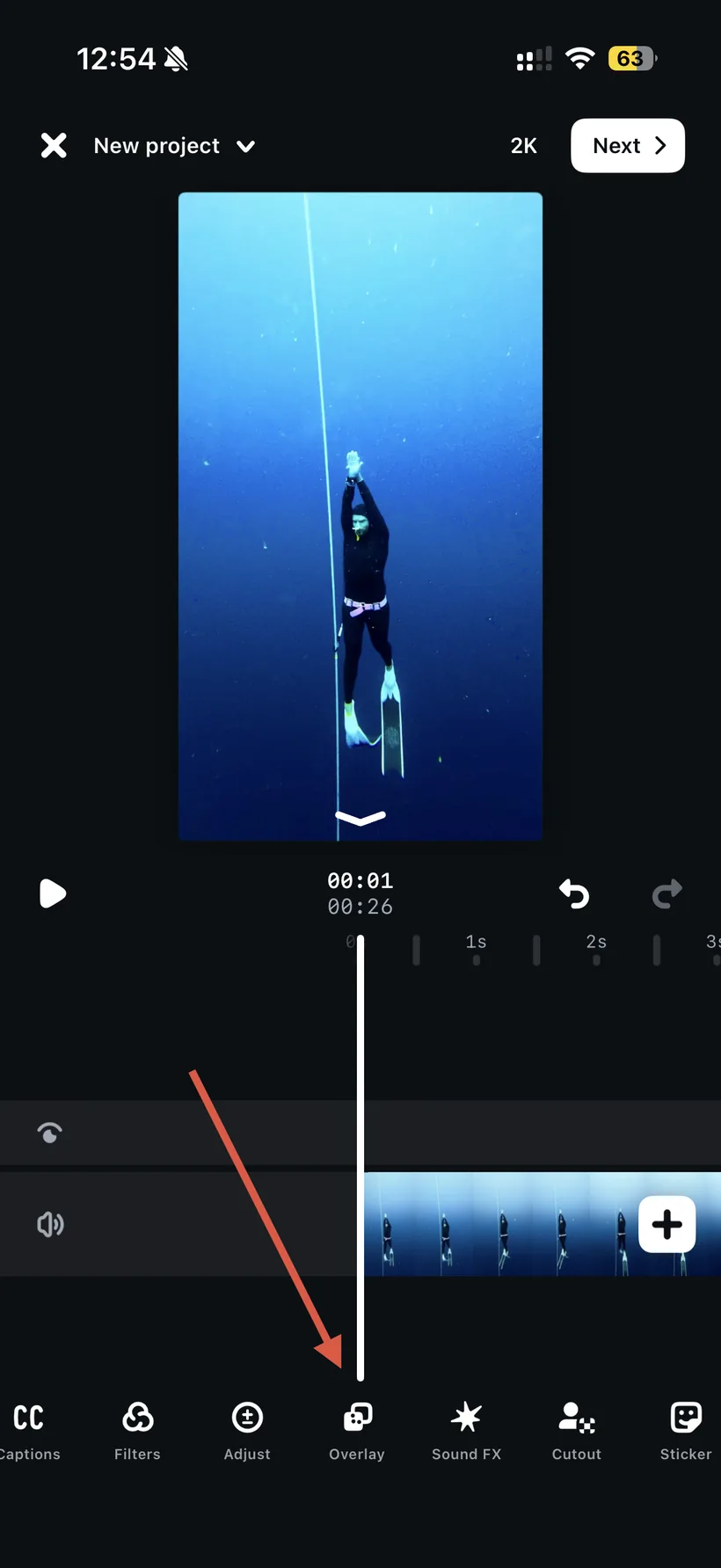
Step 4: Select the overlay layer
Tap the overlay layer so it's selected. The blend controls only apply to the active layer.
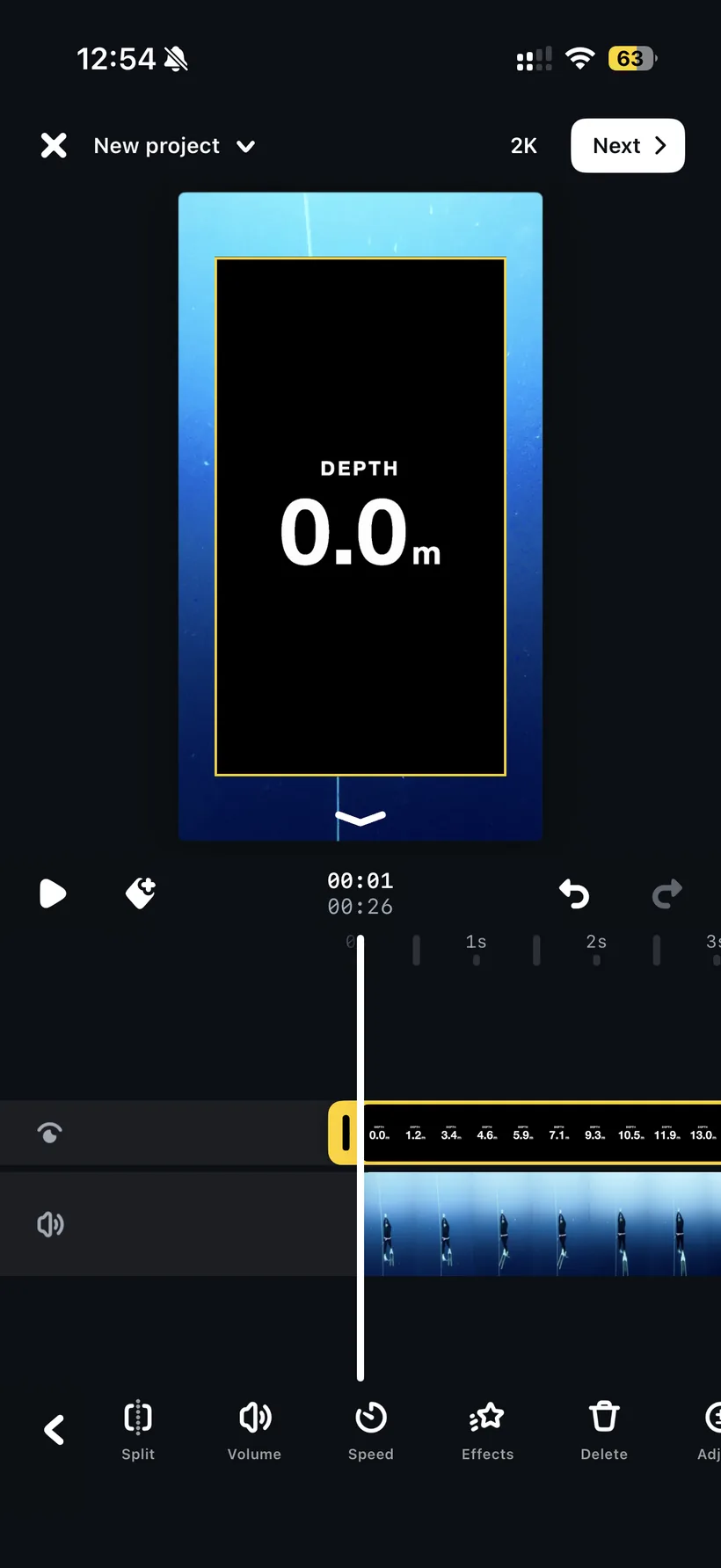
Step 5: Set the blend mode to Screen
Open the overlay's Opacity settings.
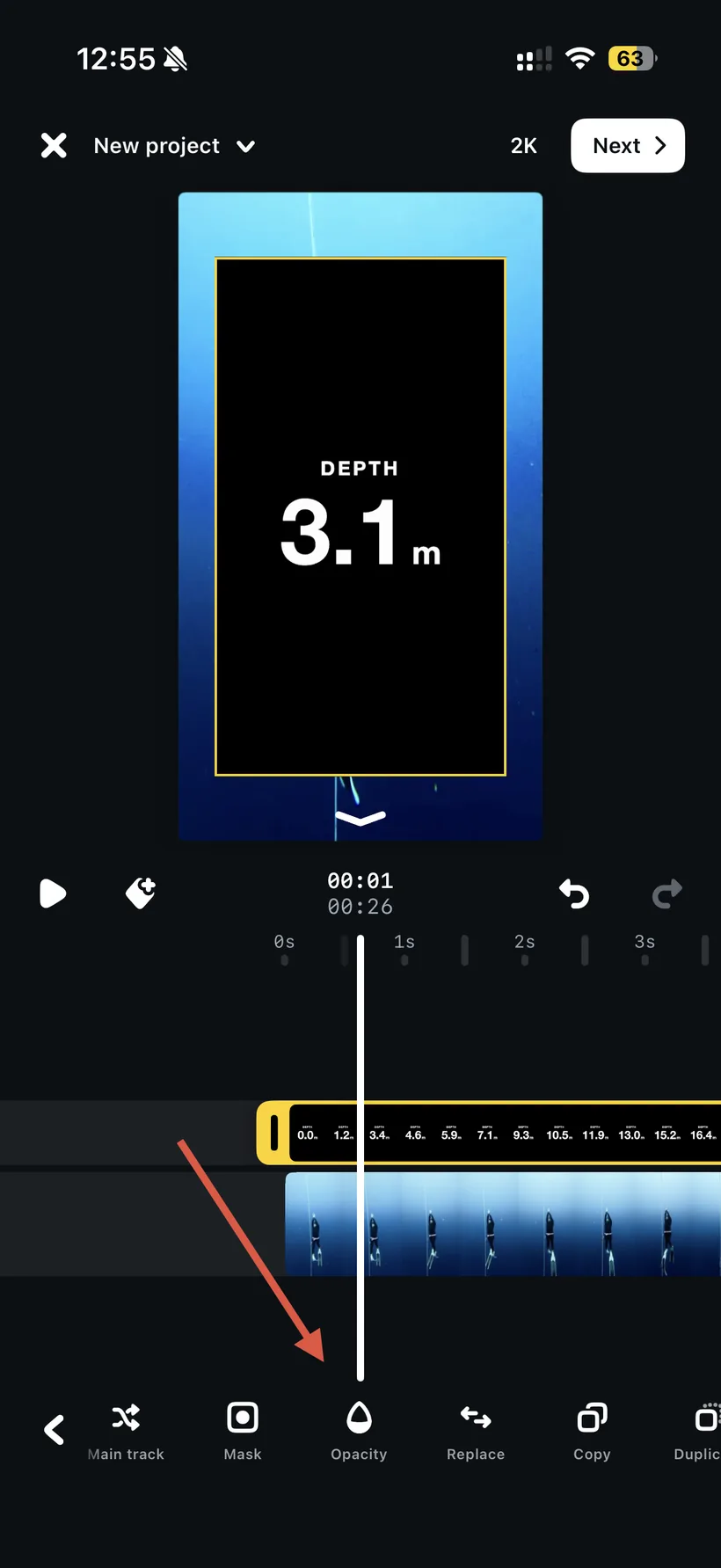
Switch over to the Blending tab.
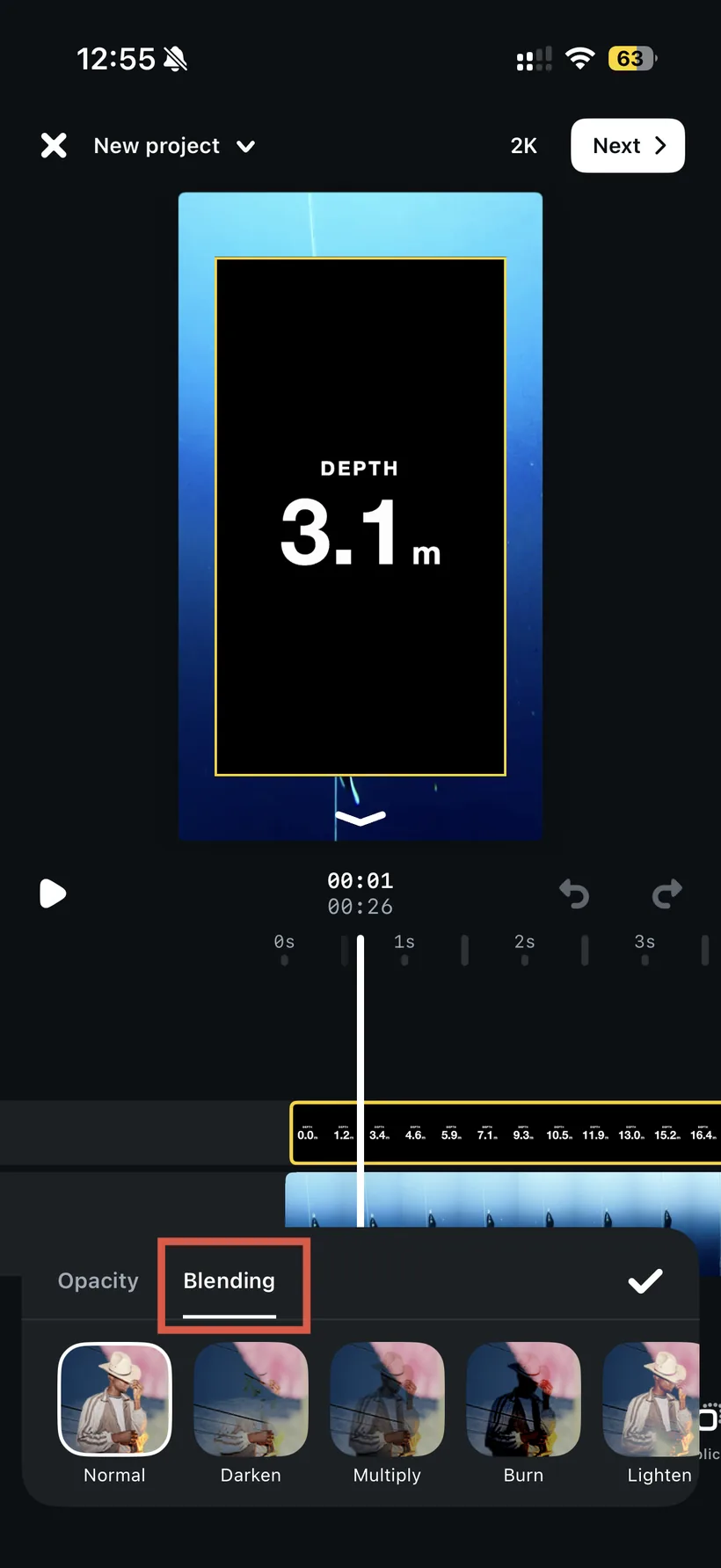
Choose Screen. The black background drops away, leaving only your crisp metric graphics floating over the dive.
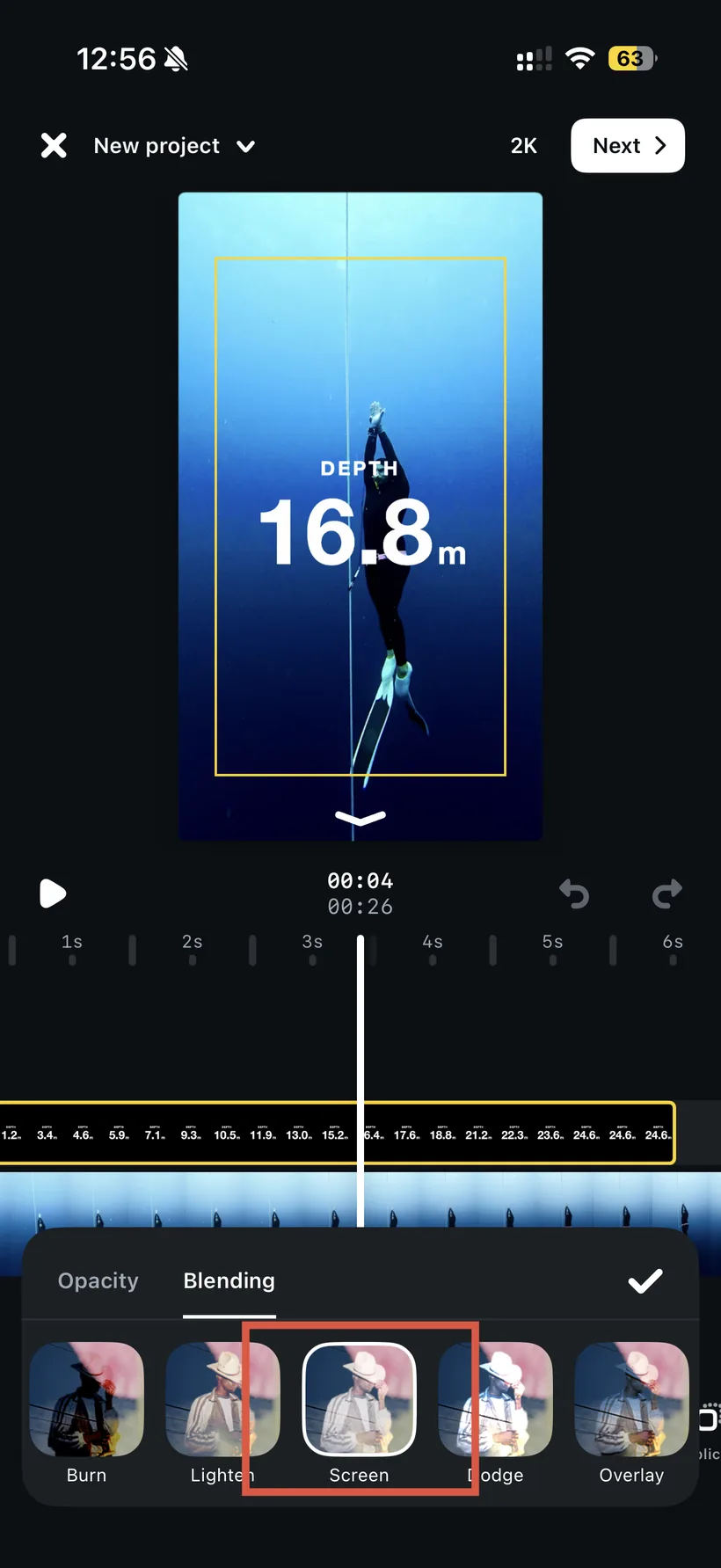
Wondering why Screen and not a green screen? Underwater footage is full of the blue-green tones a chroma keyer chokes on. Here's why Screen blend beats a green screen for dive video.
Step 6: Resize and position (don't skip this)
This is the step that makes it look intentional. With the overlay selected, drag the corner handles to scale it and drag it to reposition so the metrics sit exactly where you want. Usually that's the lower third or a corner, clear of your subject and matching your framing.
Check it at a few points in the dive, not just the first frame. As the depth number changes width you want it to stay comfortably inside the frame the whole way through. Then line the overlay up in time with your footage, and you're ready to publish straight to Reels.
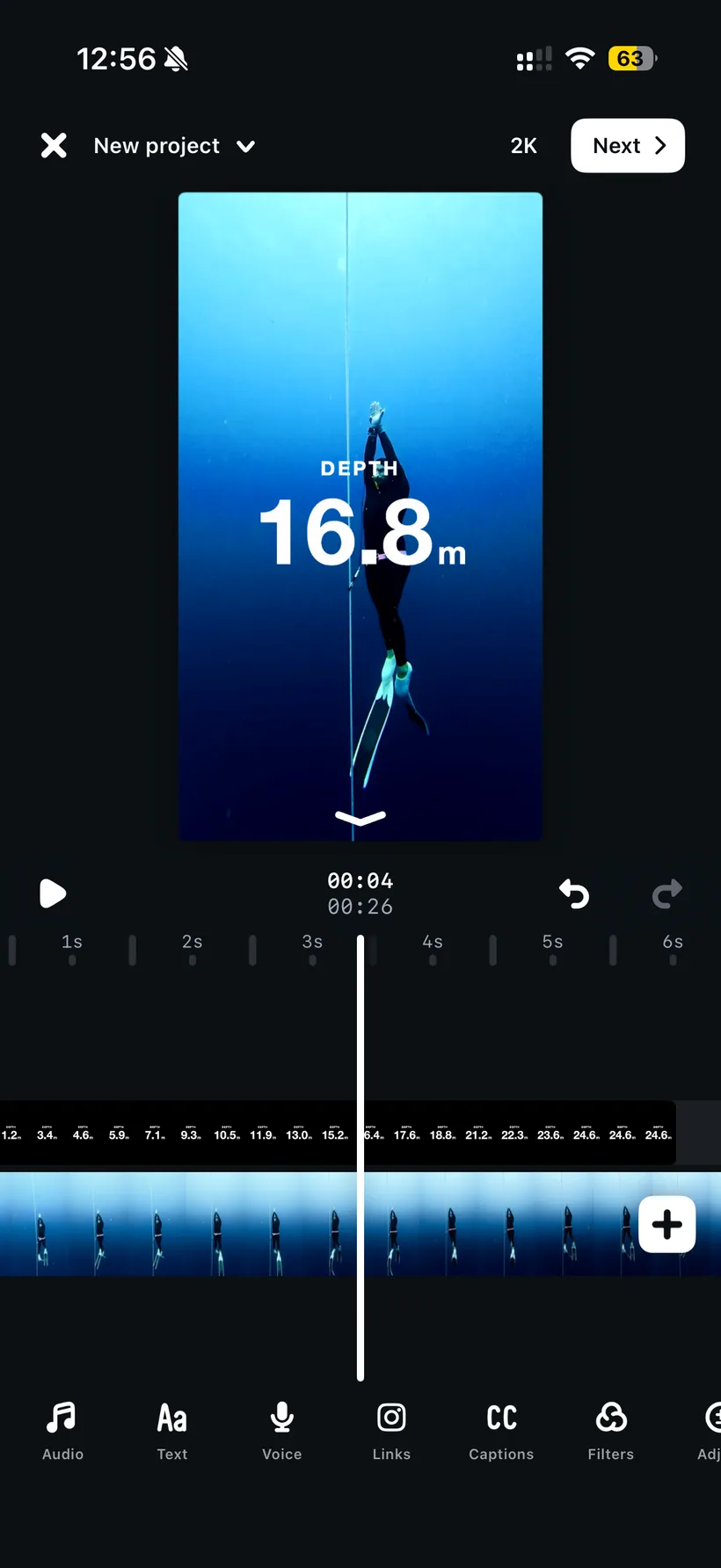
Bonus tip: play with blend styles
Screen gives you the standard look: your metrics sitting on top of the footage. But the blend mode is where the creative options live. Try the other styles in the Blending tab for completely different effects. One worth trying flips it around so the dive footage only shows through the numbers themselves, with everything else dark, so the metrics become a window into the dive rather than a layer on top of it. Experiment and find a signature style for your reels.