Your Garmin dive computer records every second of your dive as a .FIT file: depth, time, temperature and heart rate. Before you can turn any of that into an overlay, you need to get that file off the watch. Here's the fastest way, straight from the Garmin Connect app.
What you'll need
- Your Garmin dive computer, synced at least once since your last dive
- The Garmin Connect app on your phone
Step 1: Find the dive you want
Open Garmin Connect (make sure your watch has synced) and find the dive in your activity list.
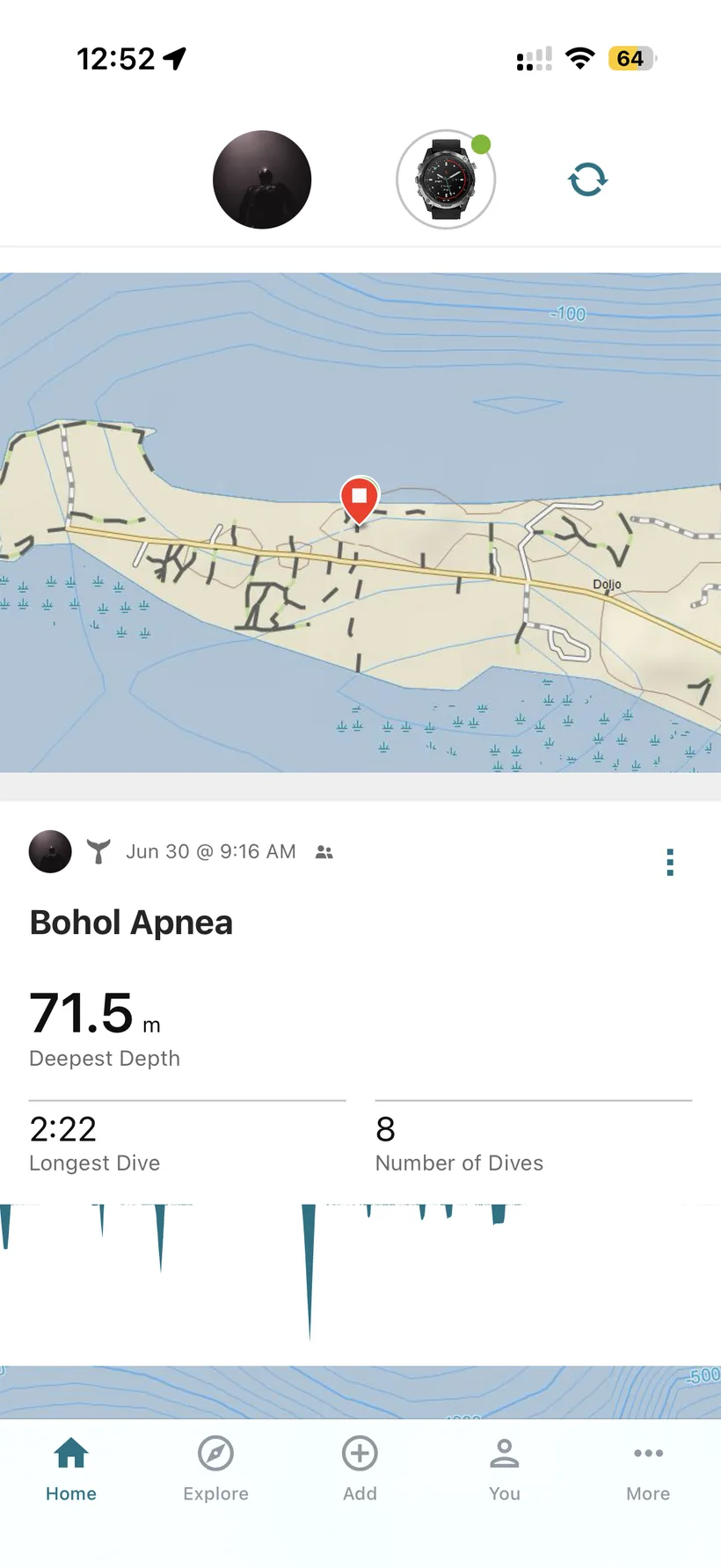
Step 2: Open the dive and tap the ⋮ menu
Tap into the activity, then tap the ⋮ (three dots) menu in the top corner.
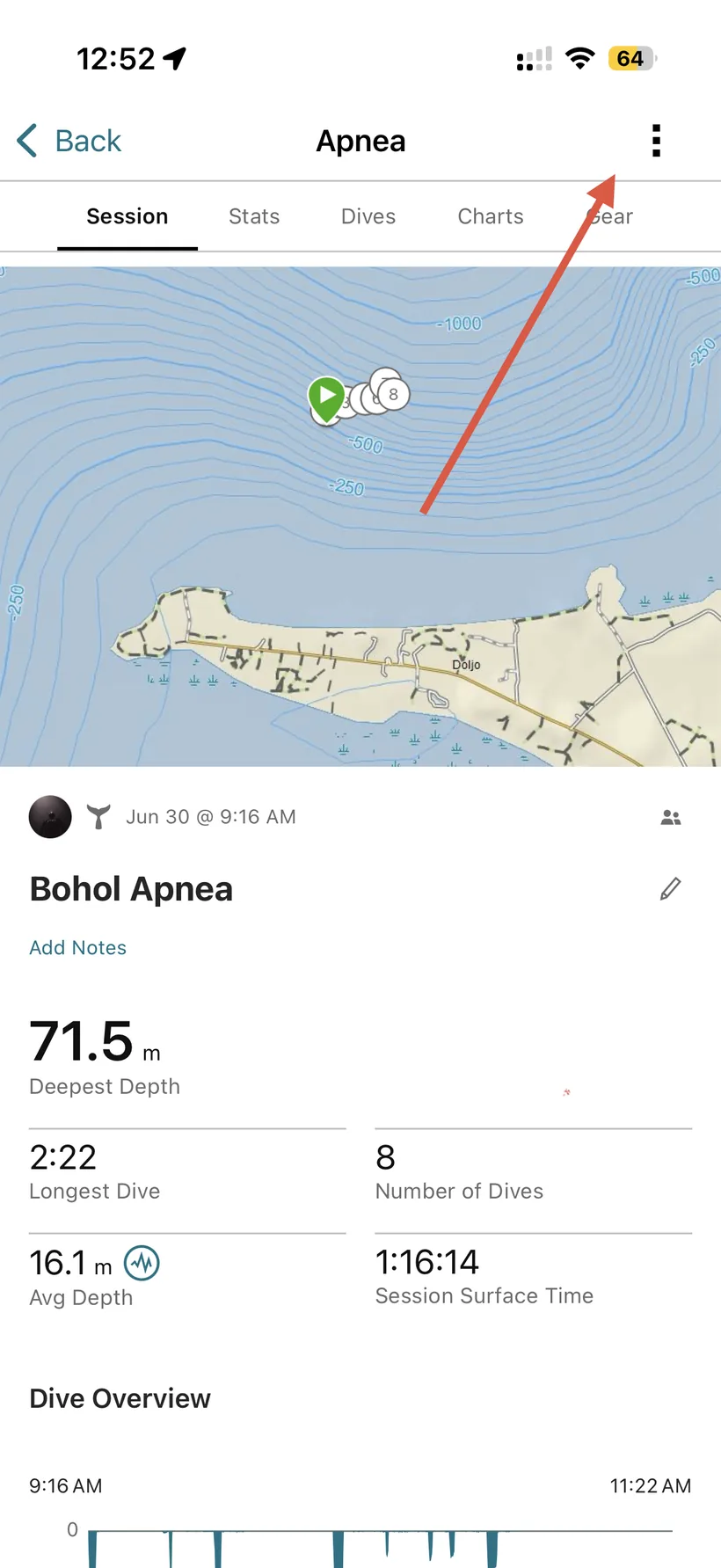
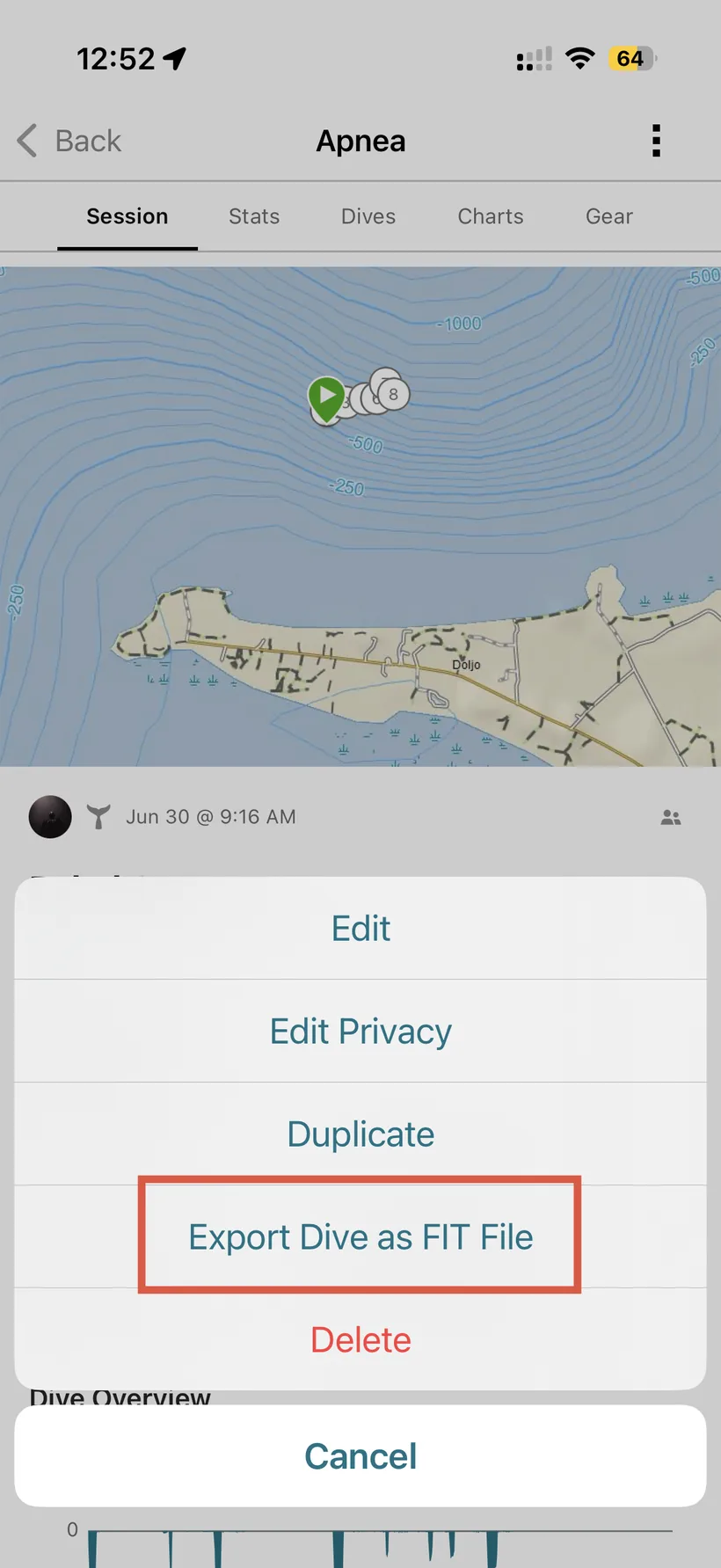
Step 3: Export Dive as FIT File
From the menu, choose Export Dive as FIT File. This downloads the raw .FIT, which is exactly what DiveHUD needs.
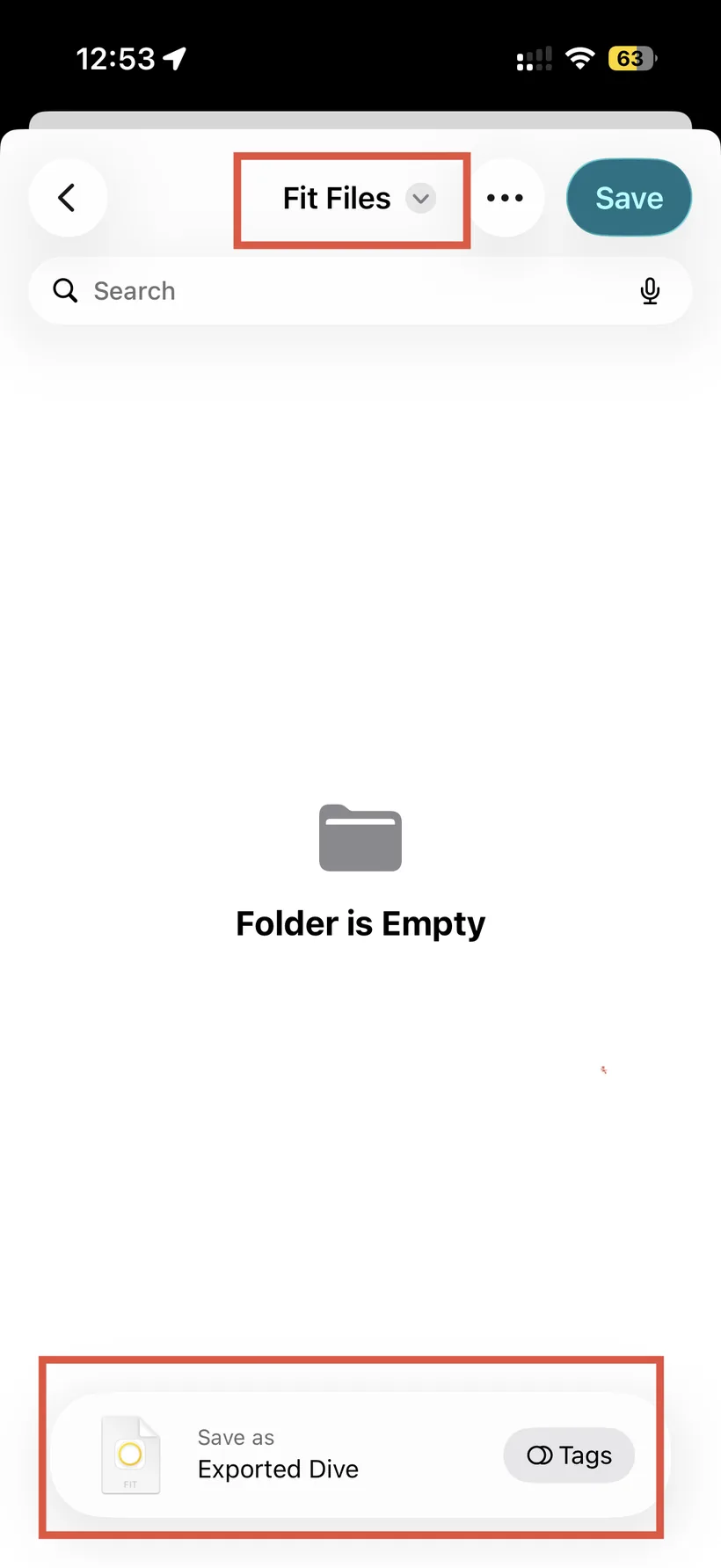
Step 4: Save it somewhere you'll remember
You'll be asked where to save. Drop it somewhere easy to find and give it a name you'll recognise later. That helps when you're exporting a few dives from the same trip.
If your dive doesn't show up as an activity, make sure your watch was actually in a dive-tracking mode, not just general activity tracking. Recreational, apnea/freediving and scuba modes all record and sync as their own activity types.
On desktop instead?
Prefer a bigger screen? Sign in at connect.garmin.com, open the dive, click the gear/settings icon on the activity, and choose the export option to download the .FIT to your computer. Same file, same result.
Next step
Once you've got the .FIT saved, upload it straight into DiveHUD and generate a depth or time overlay. We parse depth, time, and (where available) speed, temperature and heart rate automatically, with no manual entry required. From there it's a couple of taps to a finished overlay, ready to drop onto your footage with Screen blend.